T TRIPOAI

AI 3D explained

In practical terms, what is tripo ai?

Tripo is an AI-assisted way to turn a written description or reference image into a draft 3D model. It helps you explore a shape quickly, but the result may still need inspection and editing before use.

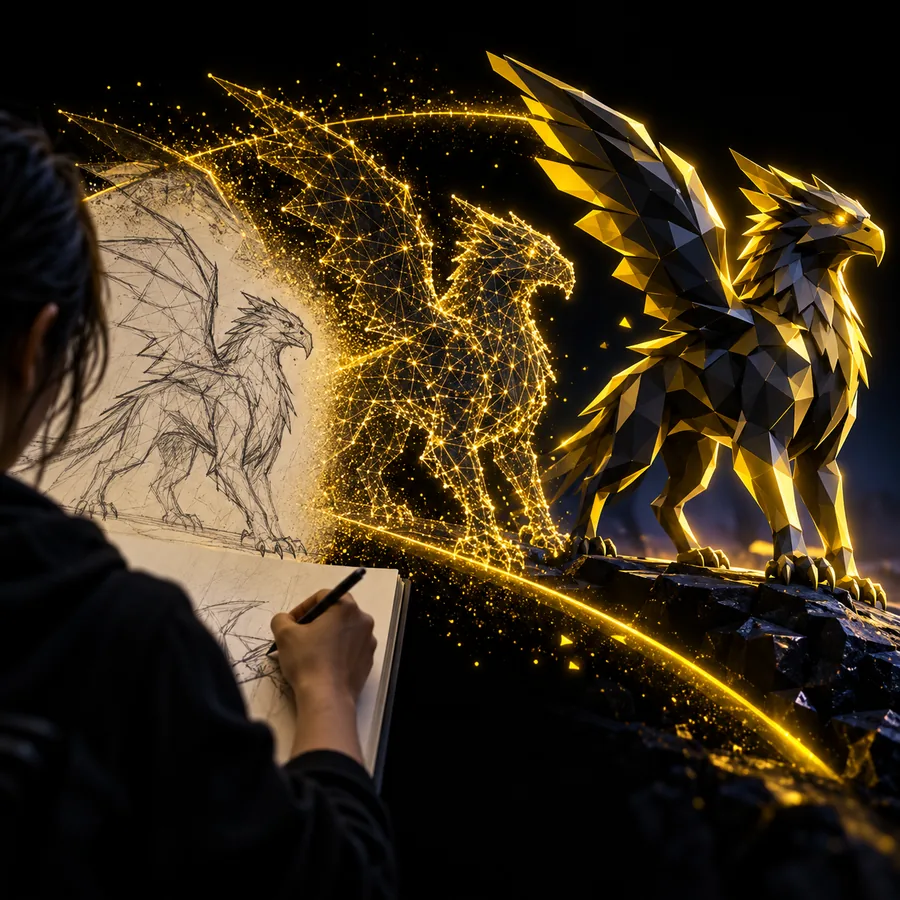
Illustrative 3D creation scene

Where the shortcut stops

Generation can make the first version easier. It does not remove the need to judge whether that version fits your project.

Hidden surfaces are guesses

A single photograph does not show the back, underside, or internal structure of an object. The generated model may invent those areas in ways that do not match the real subject.

Workaround

Use clearer references from multiple angles when available, then inspect the model from every side.

Topology needs checking

An appealing preview does not establish that the mesh has suitable edge flow, clean boundaries, or the level of detail your workflow requires.

Workaround

Review the geometry in a 3D editor and retopologize or simplify it if necessary.

Fine details may drift

Text, tiny parts, symmetry, and precisely measured features can be unreliable in generated output.

Workaround

Treat the result as a concept draft and rebuild exact features manually.

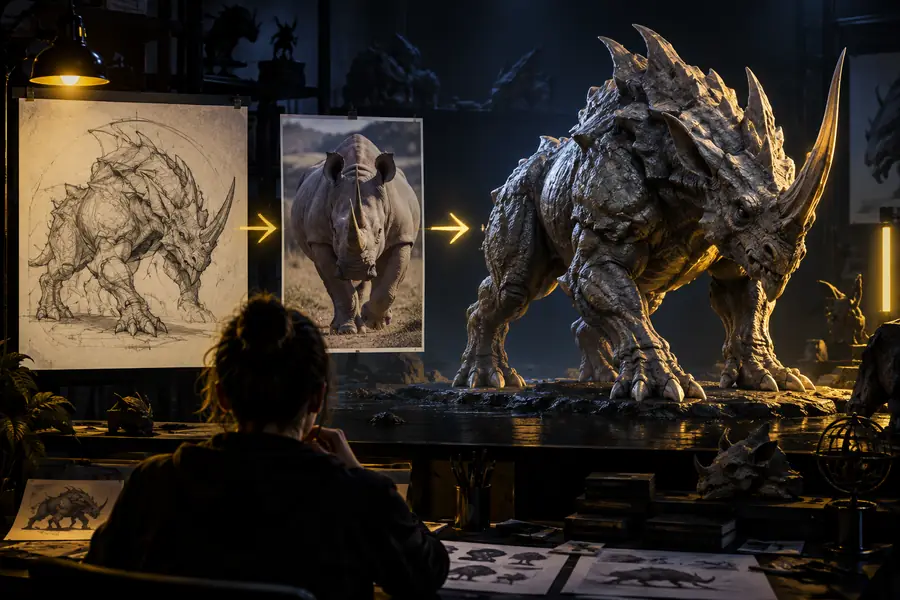
From reference to draft

Illustration representing an initial 3D concept Starting concept
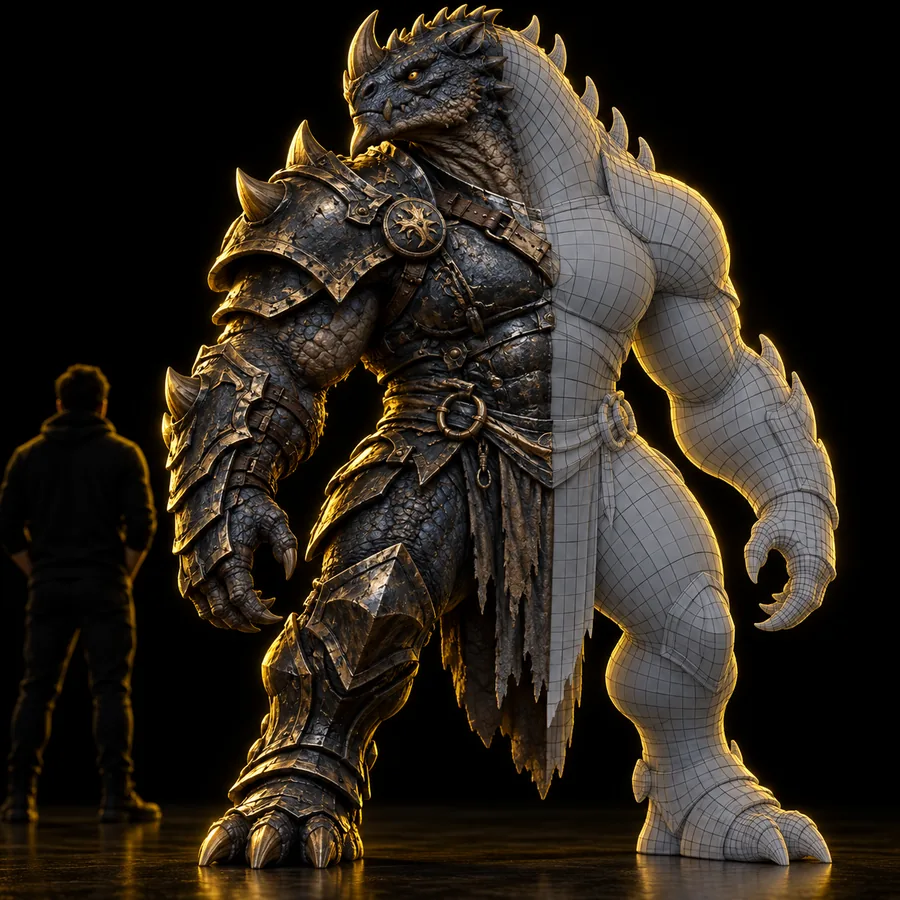
Illustrative generated 3D model scene 3D draft
These images illustrate the idea-to-model workflow; they are not a verified before-and-after conversion of the same input.

How it works

The basic workflow moves from a description or visual reference to a generated draft, then to human review.

  1. 1

    Choose an input

    Describe the subject and its distinctive features in words, or select a clear reference image. A specific silhouette and an uncluttered subject give the generator a more useful starting point.

  2. 2

    Generate a draft

    Tripo interprets the input and proposes a three-dimensional form. The result is a candidate model, not a measured reconstruction or a substitute for a technical drawing.

  3. 3

    Inspect and refine

    Rotate the model to check its unseen sides, proportions, surface details, and mesh. Revise the input or continue editing in a 3D tool if the intended use calls for greater control.

Follow the input that interests you

If you already know whether you want to start with a picture or a description, these guides go deeper into that part of the workflow.

What it can and cannot do

The useful distinction is between producing a plausible first pass and delivering a finished asset with every technical requirement satisfied.

Can explore forms

Tripo can turn an idea into a visible 3D draft, making it easier to compare silhouettes and overall directions before spending time on manual detail.

Can use a visual starting point

A reference image can communicate color, shape, and character more directly than a short description, although unseen parts still require interpretation.

Cannot promise exact specifications

Do not assume a generated object meets precise dimensions, mechanical tolerances, animation topology, or another project's technical rules without checking it.

Choose the right starting method

Choose this when

You can describe the object but have no reference picture.

Start with text.

A prompt lets you name the subject, style, and defining features, then adjust the wording when the draft misses your intent.

Choose this when

You have a clear picture of the subject.

Start with an image.

The picture supplies visual cues that would take longer to explain, while still leaving hidden geometry open to interpretation.

Choose this when

You need exact dimensions or controlled mesh structure.

Plan for manual modeling or editing.

A generated draft may help communicate the concept, but a specialist workflow is better suited to strict technical requirements.

Who uses it

The strongest use cases are those where seeing a rough form early is more valuable than receiving a finished technical asset immediately.

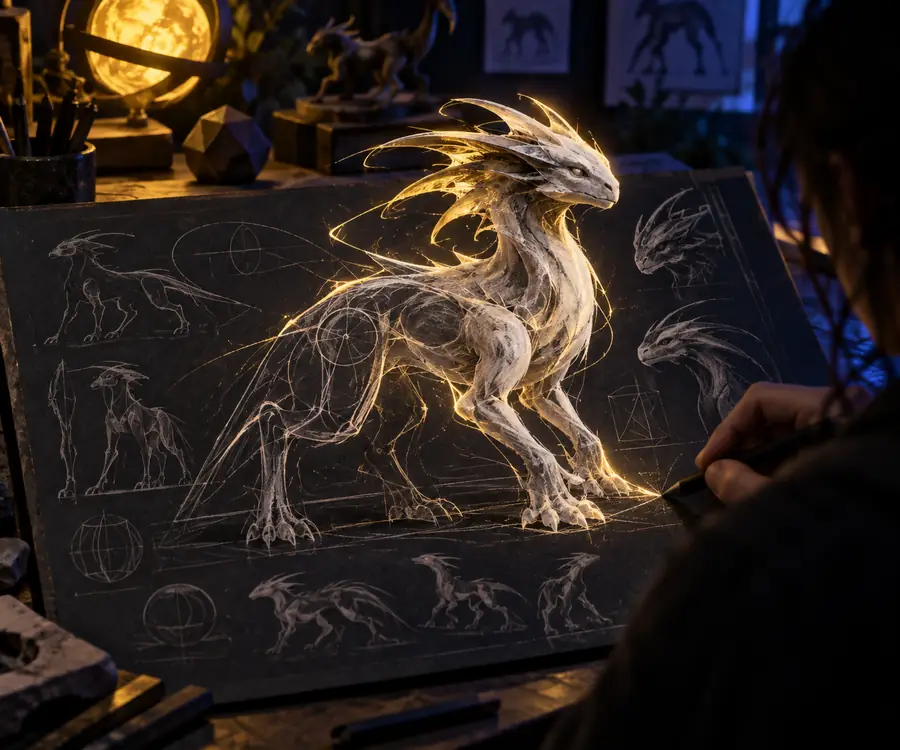
Illustrative 3D concept scene Early exploration
01

Concept artists testing a silhouette

An artist can use a Tripo draft to explore whether a creature, prop, or object reads well in three dimensions. Rotating a rough model may reveal proportion problems that a single sketch hides. The draft remains a reference for further design, not an automatic final character.

  • Compare broad shape ideas
  • Check the subject from different angles
Illustrative 3D design scene Visual planning
02

Designers building a quick visual mockup

A designer can turn a product idea or reference into a form that is easier to discuss with collaborators. That makes the tool useful for early visual communication. If the object must fit real components, be manufactured, or match a measured space, its geometry needs a separate technical review.

  • Share a tangible first impression
  • Validate requirements outside the generated preview

Try an idea in three dimensions

Make a first 3D draft

Start with one clear subject and a few distinctive details. Once you have a result, inspect its shape from every side and decide which parts are worth refining.

Explore 3D generation
  • Begin with text or an image
  • Review the draft before using it

FAQ

Tripo is an AI-assisted 3D generator: you provide an idea or visual reference and review the model it proposes. Traditional modeling tools offer more direct control over individual surfaces and vertices, so the two approaches can complement each other.

You can start with a written description or a reference image. Give the subject a clear identity and include the details that matter most; vague inputs leave more of the design to interpretation.

No exact match should be assumed. A picture leaves some sides unseen, and even visible details may be interpreted differently, so rotate the result and compare it with your source.

That depends on your purpose and the quality of the particular result. A rough visual concept may be useful immediately, while animation, fabrication, or other technical uses usually call for checks and possible mesh edits.

Start creating
Start creating