T TRIPOAI

Lightweight 3D

Make compact assets with a low poly 3d model generator

Use Tripoai to explore a 3D concept, then judge it as a low-poly asset rather than a finished render. A readable silhouette, distinct parts, and simple surfaces matter more than tiny details.

Inspect the mesh before using it
Tripoai 3D generation showcase

The low-poly entry point versus general generation

General generation asks whether the object looks right. A low-poly workflow also asks whether its shape stays clear when detail is reduced.

Game prop artist

A chest must read clearly from an overhead camera, without relying on carved ornament.

Start with broad shapes and inspect the result at its intended on-screen size. For a reference-led starting point, try tripo image to 3d.

tripo image to 3d

Character designer

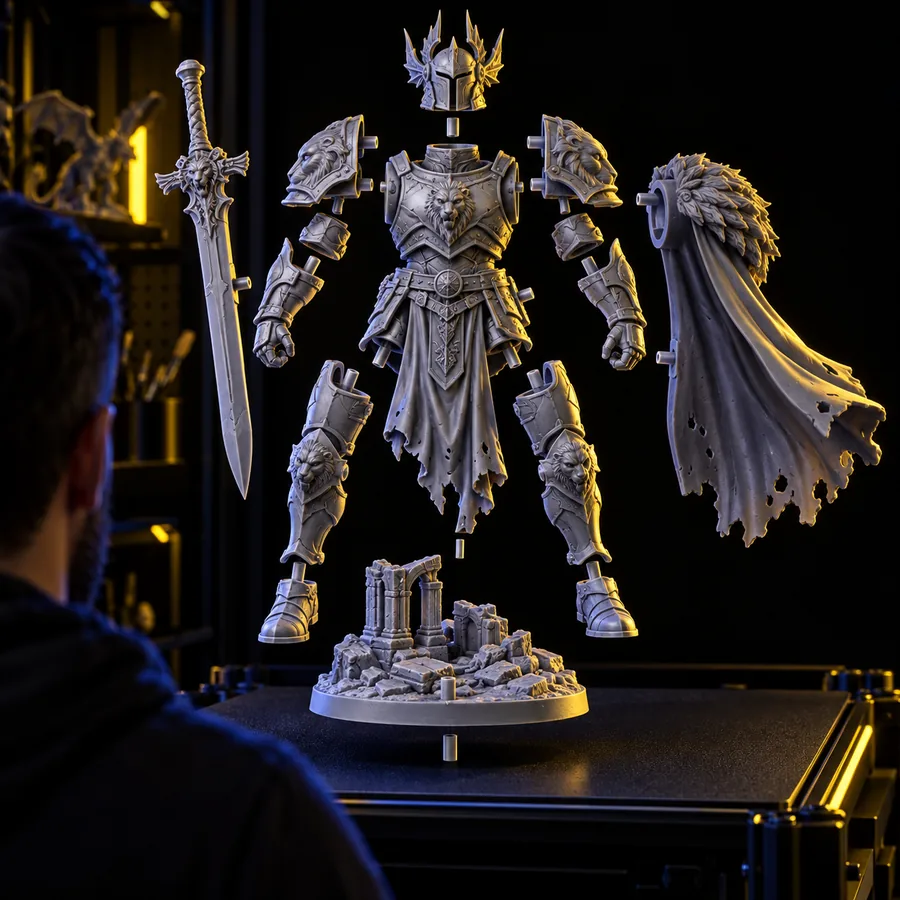
A stylized figure needs recognizable clothing and equipment before its mesh is simplified.

Keep major pieces visually separate during concept work. Tripo segmentation covers the distinct-parts workflow.

tripo segmentation

Environment builder

Several background props need to share a restrained visual style.

Use similarly broad forms across the set, then check each model in the scene. An image to 3d model workflow can help when a prop already has a visual reference.

image to 3d model

Three things a low-poly workflow changes

Treat a generated Tripo model as a starting mesh. These three checks distinguish a compact asset workflow from a visual concept pass.

Tripoai feature visual for inspecting a generated 3D concept
01

Prioritize the outline

The first job of a low poly 3d model generator prompt is to establish a recognizable mass. Name the object's large shapes, proportions, and viewpoint; leave engraved details and surface noise out of the initial request. In Tripo, rotate the result and check whether it still reads without texture.

  • Specify broad forms and proportions
  • Inspect the silhouette from several angles
Tripoai feature visual representing a 3D asset workflow
02

Separate parts that need editing

A shield fused to an arm or a handle merged into a cup makes later edits difficult. Ask Tripo for clear separation between important components, then inspect the actual geometry. A visible seam in a preview does not guarantee independently editable pieces.

  • Identify pieces that must move or change
  • Verify separation in the exported mesh
Tripoai feature visual for reviewing a generated model
03

Judge the mesh, not just the preview

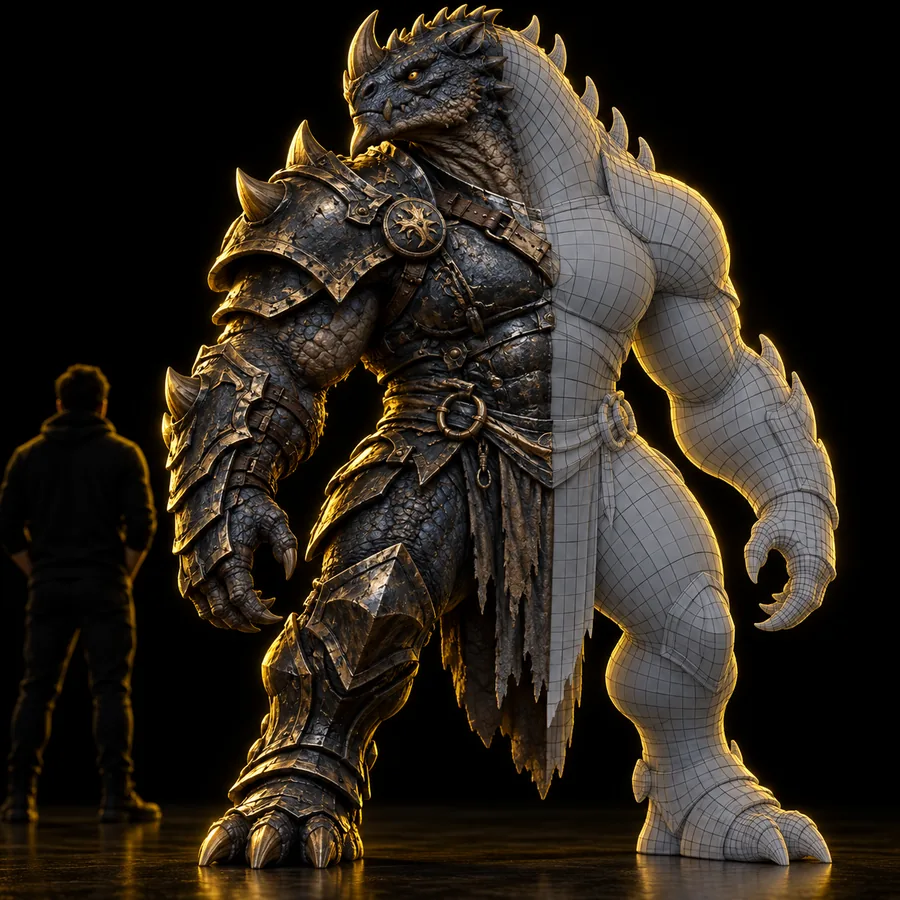
A clean-looking Tripo render can conceal dense geometry, awkward topology, or texture-dependent detail. Open the resulting model in your editing software to check polygon count, surfaces, scale, and materials against your project's requirements. Simplification and cleanup may still be necessary.

  • Check actual geometry and materials
  • Test the asset in its destination scene

Choose the right starting material

A concise prompt suits an original prop; a reference image is useful when its proportions or appearance must carry through.

How to start a lighter-model workflow

  1. 1

    Describe the primary forms

    Give Tripo an object, its broad proportions, and a simple style direction. For example, describe a squat stone lantern with a wide roof and open windows rather than listing tiny decorative marks.

  2. 2

    Inspect the generated shape

    Rotate the Tripo result. Check the silhouette, openings, and whether important pieces remain distinguishable. Revise the concept if those fundamentals are unclear; detail will not fix an unreadable outline.

  3. 3

    Check it in the destination tool

    Examine the actual mesh and materials in your editor. Reduce geometry or retopologize where needed, then test the asset at the scale and viewing distance your project will use.

Limits of automatic low-poly results

A stylized preview is not proof of a particular polygon budget or production-ready topology.

No guaranteed triangle count

A prompt asking for a low-poly look does not establish a measurable mesh limit. Tripo output must be checked against the budget set by your project.

Workaround

Inspect the exported geometry and simplify it in your 3D editor if it exceeds that budget.

No automatic deformation-ready topology

Even a convincing Tripo character concept may have edge flow that bends poorly around joints.

Workaround

Plan a retopology and rigging pass before using it for animation.

No guarantee that visible parts are separate

Colors and shading can imply distinct components while the underlying geometry remains connected.

Workaround

Open the mesh, inspect its pieces, and separate or remodel parts that need independent editing.

No substitute for an in-scene test

A model that looks clear in isolation may lose its silhouette beside other props or at a small screen size.

Workaround

Place it in the intended scene and revise the major shapes before polishing surface details.

Turn a simple idea into a testable asset

Start with a shape you can recognize

Describe a compact prop in Tripo, inspect the generated mesh, and refine it against the needs of your scene. Keep the first pass focused on proportions; verify geometry before treating the result as a finished low-poly model.

Generate 3D concept
  • Begin with broad forms
  • Inspect the actual mesh
  • Refine for your destination

Low-poly 3D generation FAQ

Low poly describes a mesh built with relatively few polygons for its intended use, not a fixed universal number. Flat shading can create a similar appearance without reducing geometry, so inspect the mesh itself.

Tripo can provide a starting point for a stylized game asset, but game readiness depends on your project's requirements. Check geometry, scale, materials, and how the model performs in the destination scene.

A reference image can guide the object's appearance and proportions. The generated mesh may still need simplification or remodeling if your project requires a particular polygon budget.

No. A style description influences the result's appearance but does not guarantee edge flow suited to animation, UV editing, or further modeling. Inspect and retopologize where those tasks require it.

Small details disappear before large shapes do. Strengthen the silhouette, exaggerate distinctive proportions, and test the Tripo asset at its intended viewing distance.

Start creating
Start creating