T TRIPOAI

Create in browser

Explore tripo ai for web, from idea to 3D draft

Use a browser to describe a 3D object or start from a reference image, then inspect the resulting draft before deciding what to refine. Tripoai helps you choose a practical starting point without treating the first result as a finished asset.

Review the output before using it
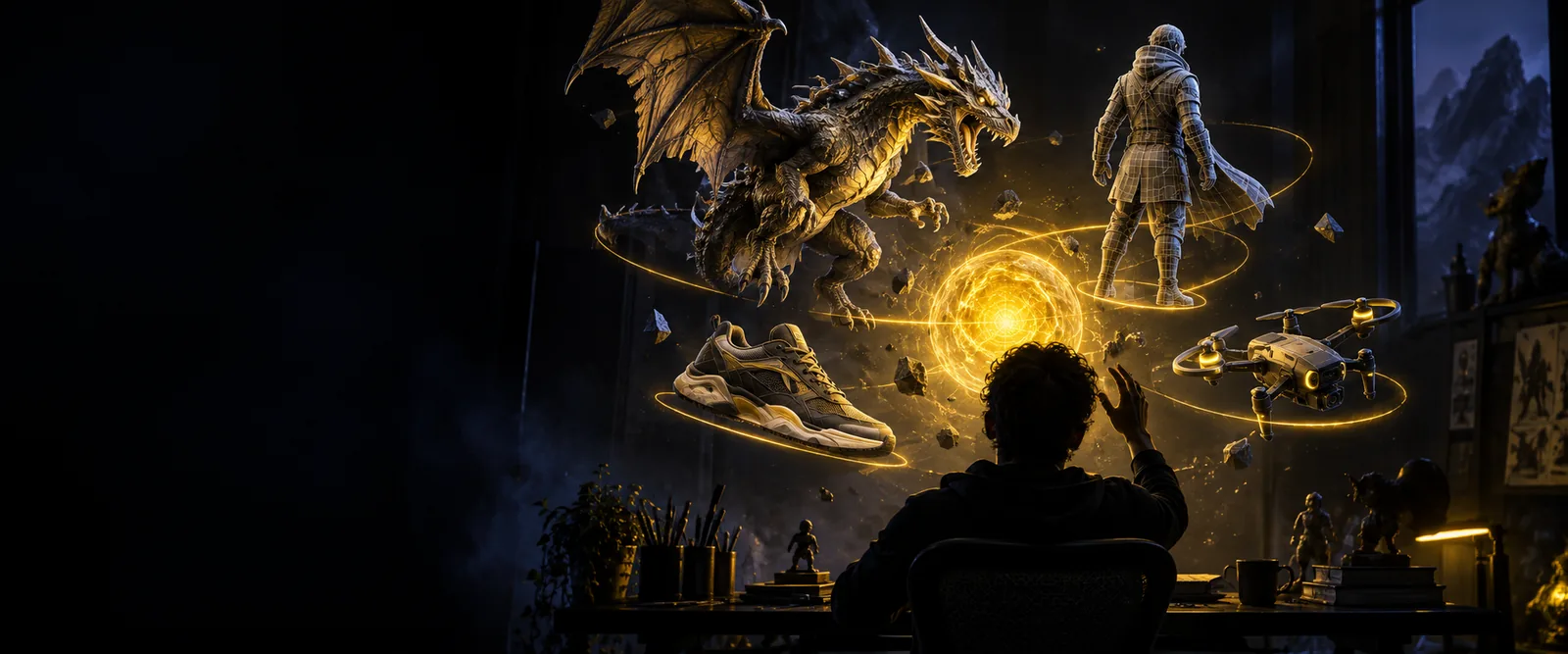
Illustration of a generated 3D model displayed in a browser

One browser tab, a workable 3D starting point

The useful result is a draft you can evaluate, not a promise that every surface or hidden side is production-ready. Choose an input that matches what you already know about the object.

Product visualizers

You have a clear photograph of a single object and need a rough view from other angles.

Start with the image, inspect the unseen surfaces, and revise the reference if the silhouette is unclear. The tripo image to 3d guide explains how reference quality affects the draft.

tripo image to 3d

Concept artists

You know the shape and materials you want but have not drawn a reference.

Describe one object with distinctive features, then compare the draft against your brief. The text to 3d model guide covers writing a prompt with useful visual constraints.

text to 3d model

Game prototypers

You need a prop to test scale and composition in a scene.

Use the generated shape for an early layout check, then assess topology and performance separately. The ai 3d model generator for game developers guide addresses that handoff.

ai 3d model generator for game developers

Three ways a browser workflow takes shape

Text and image inputs solve different problems. This comparison helps you choose a route before you spend time refining a result.

Text-led draft
Image-led draft

Starting material

Text-led draft

A written description of one object

Image-led draft

A clear reference image of one object

Best starting point

Text-led draft

An idea without finished artwork

Image-led draft

An existing design with a useful silhouette

What guides the shape

Text-led draft

Named parts, proportions, and style cues

Image-led draft

Visible outlines, colors, and surface cues

Main ambiguity

Text-led draft

Vague words leave proportions open to interpretation

Image-led draft

One view cannot show the back or hidden joints

Useful revision

Text-led draft

Specify the part that came out wrong

Image-led draft

Try a cleaner view with less background clutter

First review

Text-led draft

Check whether the draft matches the written brief

Image-led draft

Check the silhouette against the reference

Step by step, from input to inspection

Keep the first pass narrow. A single recognizable object makes it easier to see what the browser result gets right and what still needs work.

  1. 1

    Choose one clear subject

    Write a short description or select an image with an unobstructed subject. For text, name the major parts and one or two style cues. For an image, avoid a busy background that could be mistaken for part of the object.

  2. 2

    Create an initial draft

    Submit the input and treat the result as a proposal. Keep your original prompt or reference nearby so you can judge the output against the same brief rather than changing goals midway.

  3. 3

    Rotate and revise

    Inspect the silhouette, hidden surfaces, and any thin parts from several angles. If a feature is missing, clarify that feature in the next input; if the whole shape is off, simplify the subject before trying again.

Limits and edges of creating 3D in a browser

A convenient web surface removes installation from the first experiment. It does not remove the need to review geometry or prepare an asset for its final use.

A single image cannot reveal every side

The browser can work from visible cues, but the back, underside, and obscured connections still require interpretation. Those areas may not match the real object.

Workaround

Use a reference that shows the silhouette clearly, then inspect unseen areas before relying on the draft.

Fine details may not survive the first pass

Small text, thin straps, delicate openings, and tightly packed parts can appear simplified or joined together.

Workaround

Prioritize the overall form first and plan to repair critical details in a 3D editor.

A preview is not a production check

Looking convincing on screen does not establish that a model has suitable topology, scale, or materials for a game, print, or product pipeline.

Workaround

Validate the model in the software and format required by your intended workflow.

Browser access still depends on your connection

An online workflow is not an offline modeling environment. A slow or interrupted connection can disrupt submitting an input or reviewing a result.

Workaround

Save your source prompt or image locally so you can resume without rebuilding the brief.

Make a draft you can evaluate

Start with one specific object

Describe its shape, major parts, and visual style, then examine the draft from more than one angle. A focused first attempt gives you something concrete to improve.

Generate 3D draft
  • Use a clear prompt or reference
  • Inspect hidden surfaces
  • Revise before final use

Questions about Tripo in the browser

A web-based creation flow lets you start from a browser rather than installing a modeling application for the first draft. If the result needs detailed geometry edits or pipeline-specific checks, you may still need a separate 3D editor.

Start with text when you have a concept but no suitable artwork. Choose an image when the visible shape matters and you have a clean reference; either way, inspect the parts your input could not specify.

Do not assume it will be ready without inspection. Check the geometry, scale, and any requirements of your destination software or production process before using the model.

Focus on one object and make its defining shape easy to understand. A text prompt should name the main parts; an image should show a distinct subject with minimal obstruction and background clutter.

Identify whether the problem is the overall silhouette or one specific feature. Simplify the input for a silhouette problem, or describe the missing feature more precisely for a targeted revision.

Start creating
Start creating